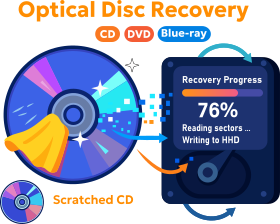
CD, DVD, Blu-ray Disks repair software
Recovery Toolbox for CD Free
Recovery Toolbox for CD Free helps to recover data from unreadable CD/DVD/Blu-ray and other optics disks
How to repair data from a scratched or corrupted optical (CD/DVD/Blu-ray) disk. Step-by-step description:
- Insert corrupted optical disk into drive on PC
- Download, install and run Recovery Toolbox for CD Free from here: Download
- Select the drive to recover data on first page of Recovery Toolbox for CD Free
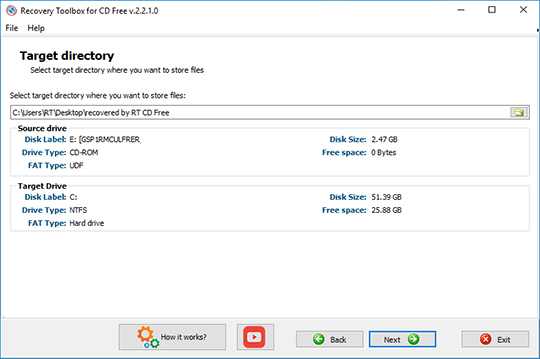
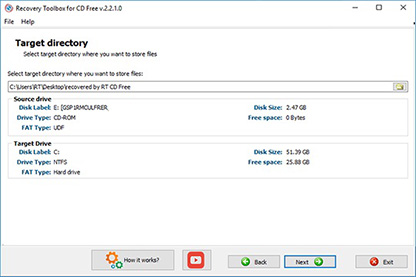
- Select the disk and folder to save recovered data
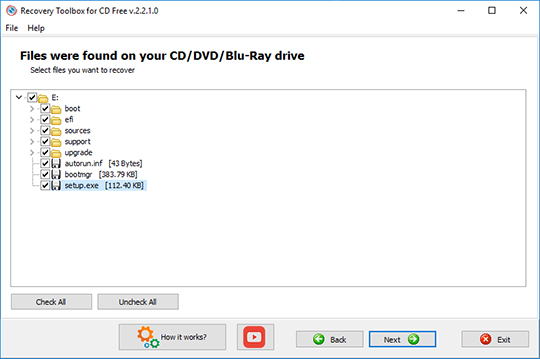
- Selecting the files /folders you want to recover from the drive
Brief list of Recovery Toolbox for CD Free features:
- Recovering corrupted data from all most common types of media for today
- Working with data that became corrupted both after a physical damage of the media and due to program errors
- Allowing the user to completely control the recovery process
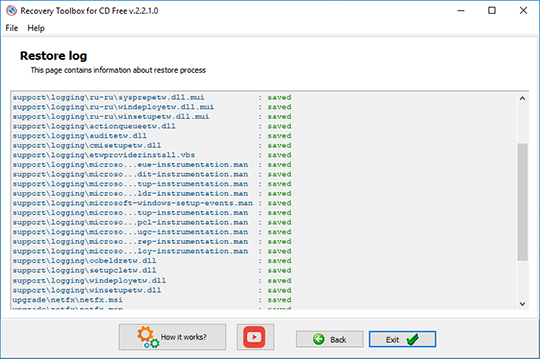
- Giving the user as detailed report about the data recovery process as possible
But what is most important - all these brilliant features are absolutely free of charge! From now on you have an available, simple, but still powerful tool for data recovery that does not require any money!
The tool will be indispensable in the following cases:
- media being physically damaged (scratches, exposure to liquids, etc.)
- the format of the media being corrupted by the software for writing disks
- OS failures while reading and accessing the media
- and so on and so forth
In all these unpleasant situations, the program will quickly and perfectly does everything necessary to recover as much information as possible. The comfortable and intuitive interface makes working with the program effective and pleasant.
If you take into account the number and quality of algorithms, the simplicity and availability of use, the range of features, Recovery Toolbox for CD Free is one of the best tools in its class and, once again, unlike most of its analogs it is absolutely free.
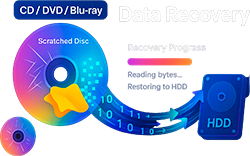
How to Restore a CD after Damage for Free
It is convenient to use the Recovery Toolbox for CD Free tool to restore data from a damaged CD. With a high probability Recovery Toolbox for CD Free can read files from a scratched and unreadable CD. To test this statement, it is necessary to:
- Download, install, and run Recovery Toolbox for CD Free.
- Select the media with a damaged CD.
- Select the folder on the hard disk where the file will be copied from the optical disk.
- Start the repair of a damaged CD.
How to Fix a CD for Free
If you need to fix a CD or DVD quickly, Recovery Toolbox for CD Free can do this in a couple of clicks. Fixing CD/DVDs occurs by copying and fixing files from a damaged optical disc to a folder on your hard drive.
Requirements:
- Windows 98/Me/2000/XP/Vista/7/8/10/11 or Windows Server 2003/2008/2012/2016 and above
Screenshots:
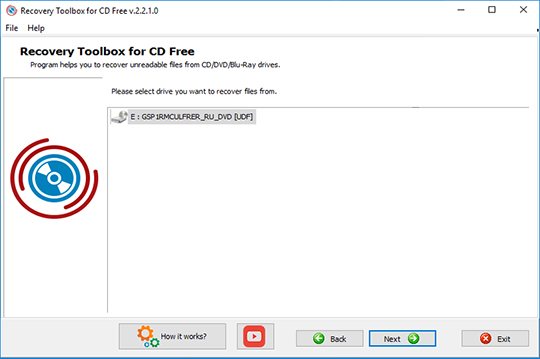
Select the drive to recover data
Select the disk and folder to save recovered data
Selecting the files/folders you want to recover from the drive
Restore log
How it Works:
Download software from website.

Install the software:
- Double-click the downloaded installation file in the browser
- Select a downloaded installation file in Windows Explorer and click Enter or double click it
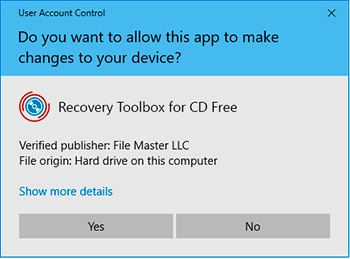
Please confirm warning message:
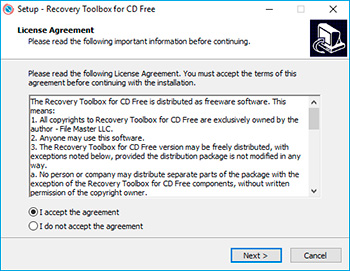
Run installation wizard:
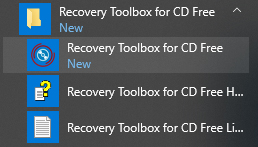
Run program:
- Double click on icon on desktop:
or
- Select from main menu: Start | Programs | Recovery Toolbox for CD Free | Recovery Toolbox for CD Free
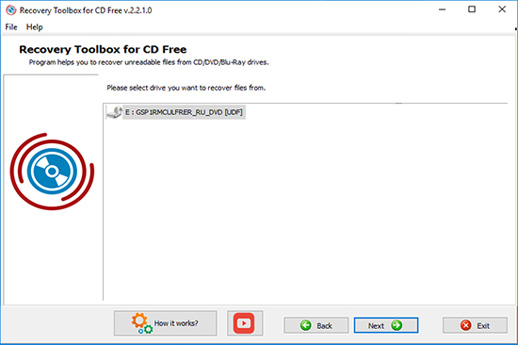
Please select a drive with damaged optical disk (CD/DVD/Blu-ray or so on):
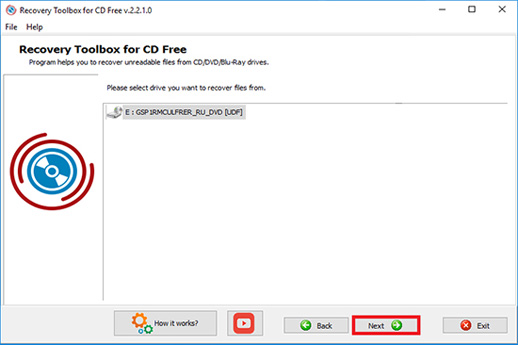
And click the Next button:
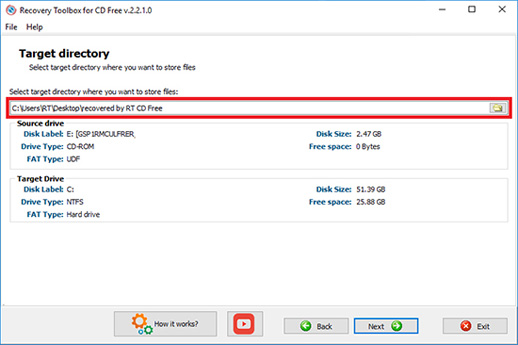
Select target directory where you want to store files
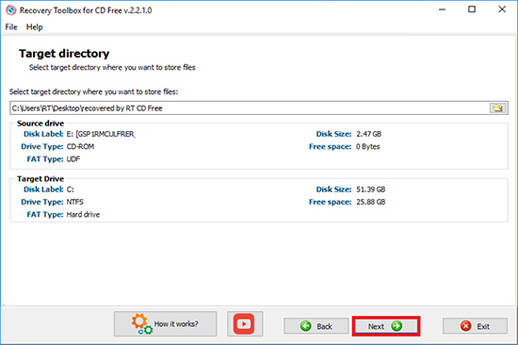
And click the Next button:
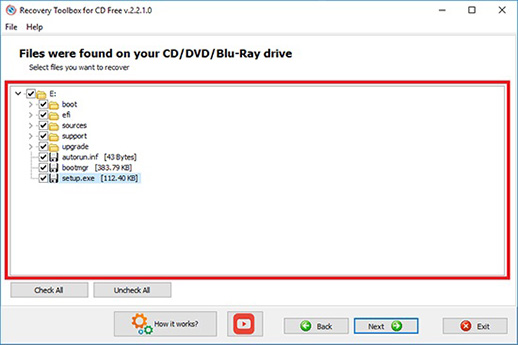
On the third page, the customer can view and select the recovered files that are to be saved:
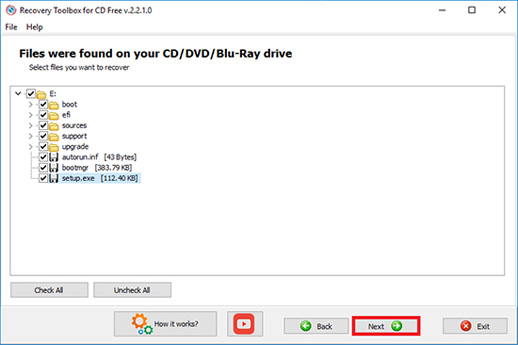
Click the Next button:
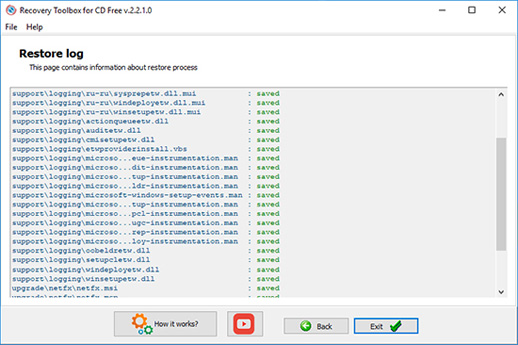
On the last page, you will find a detailed log of the recovery process:
Video:
Online help:
Recovery Toolbox for CD Free (Download) is used to recover data from all most popular types of media in an easy and effective way. The program offers the user a convenient interface that can be used to recover data in just several simple steps:
How to recover data from corrupted media?
- Select the drive to recover data from
- Select the disk and folder to save recovered data to
- Select the files/folders that should be recovered from the drive
Let us describe each step in detail.
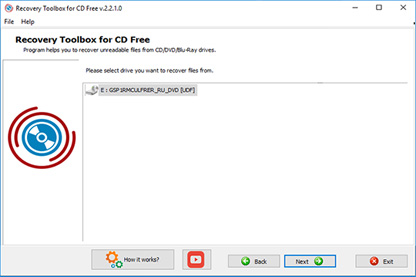
1. Select the drive to recover data from
After you start Recovery Toolbox for CD Free, you will see the first page of the recovery wizard. This page shows the list of all available drives the tool can recover data from. You should select the necessary drive with a single mouse click or using arrow keys and click the Next button. Remember that until the very start of the data recovery process you can exit the program by clicking the Exit button and go back to the previous step by clicking the Back button after you open the second page of the program.
2. Select the disk and folder to save recovered data to
After you click the Next button on the first page of the recovery wizard, you will see the page where you can select the disk and folder to save recovered data to.
There are two ways to specify the path to the location for recovered data:
- Type the necessary path in the field
- Click the button that will open the dialog box where you can select the necessary folder on any available drive. Also, you can use this dialog box to create a new folder if necessary
Besides the possibility to select the folder you want to save data to, the second page of the recovery wizard currently displayed on the screen contains information about:
- the drive where the data being recovered is stored
- the drive the program will save recovered data to
Note: information about the Target Drive is updated automatically after you change the drive selected for saving recovered data.
After you select the folder you want to save the recovered data to and view information about the source and target drives, you should click the Next button and move to the next step.
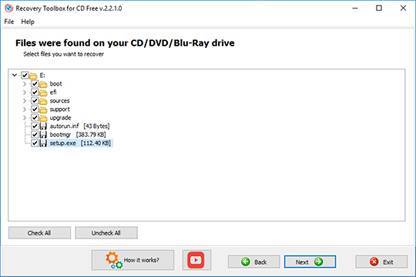
3. Selecting the files /folders you want to recover from the drive
To select a file, just click the empty white checkbox next to the name of the file. It is possible to select both separate files and whole folders with all files inside them.
You can also select all files on the drive for recovery. To do it, you should click the empty white checkbox to the left from the drive name (it will automatically select all files), which is the same as clicking the Check all button. You can cancel a click on the Check all button by clicking the Uncheck all button that will clear the selection of all files.
The Save button will become available after you select at least one file for recovery. A click on the Save button will start the process of recovering the selected files and saving the recovered information to the specified folder.
You can see the details of the recovery process in the following window. As soon as the data recovery process is complete, the program will open a window with the folder where the recovered data has been saved.
That is all! The recovery process is complete! You can click the Exit button.
Main menu in the recovery wizard
All windows in the wizard of Recovery Toolbox for CD Free have the main menu.
You can always exit the program not only using the Exit button, but also by selecting the File | Exit menu item.
The Help menu has three items. A click on the Recovery Toolbox for CD Free Help item will open this page in your default browser; the Recovery Toolbox for CD Free on the Web item will open the Recovery Toolbox for CD Free web page in your browser. A click on the About item will open a dialog box with information about the program and its developer.
FAQ-Wiki:
Question:
What types of discs are supported by the program?
Answer:
Recovery Toolbox for CD Free works with all types of optical discs that are recognized by the Windows operating system. If Windows detects an optical disc in the drive, it can be read using Recovery Toolbox for CD Free.
Question:
How long does recovery usually take?
Answer:
The reading time depends on the extent of damage to the disc. The more damaged the surface of the disc and the more difficult it is to read, the longer the recovery will take. A simple 700 MB CD can take up to a day to recover, while a high-capacity DVD-R disc can take up to a week.
Question:
Is complete data recovery guaranteed?
Answer:
No, but Recovery Toolbox for CD Free will attempt to read as much data from the optical disc as possible.
Question:
Does the program support data recovery from mini-CD or mini-DVD discs?
Answer:
Yes, if the mini-CD or mini-DVD disc is recognized by the operating system. At a minimum, the mini-CD or mini-DVD disc must be visible through Windows Explorer.
Question:
Can the program be used if the disc is badly scratched?
Answer:
Yes, Recovery Toolbox for CD Free was developed specifically for such cases. Users contacted Recovery Toolbox after experiencing problems reading optical discs, and the developers released a free program at the request of customers.
Question:
Can the program recover data from game consoles (PlayStation, Xbox)?
Answer:
No, consoles do not use Windows, and it is not possible to install Recovery Toolbox for CD Free on a console.
Question:
Can data be recovered from damaged music CDs (Audio CDs)?
Answer:
Yes, the recovered music tracks will be saved as separate files.
Question:
What should I do if the program freezes during recovery?
Answer:
Wait for the program to return to normal within 5-15 minutes. Otherwise, remove the program via the Windows Task Manager.
Question:
Does the program work in Windows 11?
Answer:
Yes, Recovery Toolbox for CD Free is compatible with Windows 11.
Question:
Is the program compatible with macOS or Linux?
Answer:
No, Recovery Toolbox for CD Free is not compatible with macOS and Linux.
Question:
Does the program support external USB drives?
Answer:
Yes, Recovery Toolbox for CD Free can work with external USB optical drives if they are compatible with Windows.
Question:
Do I need to install additional drivers for the program?
Answer:
No. The utility uses Windows drivers and system settings. No additional drivers are required.
Question:
Can I run the program in Windows Safe Mode?
Answer:
Yes, you can run the program in Safe Mode in any version of Windows.
Question:
What should I do if the program shows that the data has been recovered, but the files cannot be opened?
Answer:
In this case, it means that some of the data inside the file has been damaged and, as a result, the integrity of the data in the file itself has been compromised. In such cases, you need to try to recover each damaged file separately using special utilities for each file type or a universal online service https://online.all-recovery-inc.com/. That is, if you have an unreadable Excel file, you should try to recover it using Recovery Toolbox for Excel https://excel.all-recovery-inc.com/, and if it is a PDF document, then using Recovery Toolbox for PDF https://pdf.all-recovery-inc.com/.
Question:
Is it possible to recover previously deleted files from an overwritten disc?
Answer:
No, Recovery Toolbox for CD Free is not designed to recover previously deleted files from optical discs.
Question:
How can I save recovered data directly to the cloud (Google Drive, Dropbox)?
Answer:
To save recovered data directly to cloud storage, you need to connect the storage as a separate disk in Windows (mapped disk). That is, if the storage is visible in Windows Explorer as a separate disk with a letter designation (D:\, F;, etc.).
Question:
Is it possible to save recovered data as an ISO disk image?
Answer:
No.
Question:
What should I do if there is not enough space on my computer to recover all files?
Answer:
You can select only the files you want to save. However, you need to monitor the total size of the files being saved so that their size does not exceed the amount of free space currently available on the disk.
Question:
Can I save the recovered files directly to a flash drive?
Answer:
Yes, you can. Just specify the folder for saving directly on the USB flash drive itself.
Question:
Does the program support automatic renaming of files when duplicating?
Answer:
No.
Question:
How does the program differ from similar solutions offered by competitors?
Answer:
Recovery Toolbox for CD Free is a free program. Free use is the main difference between this program and its competitors.
Question:
Are there any online services for recovering data from damaged CDs/DVDs?
Answer:
Unfortunately, we are not aware of any such services.
Question:
Can the program damage the disc or worsen its condition?
Answer:
Recovery Toolbox for CD Free cannot damage or worsen the condition of an optical disc because it does not correct or modify the data on the optical disc itself. Recovery Toolbox for CD Free only reads the disc data, but saves it elsewhere.
Question:
Is there any point in trying to recover a disc that is more than 10 years old?
Answer:
Yes, you should try to read any disc of any age. Recovery Toolbox for CD Free is free, so you will only be spending your time.
Question:
What alternative methods (e.g., toothpaste) can help prepare a disc for recovery with the program?
Answer:
First of all, you need to clean the disc of debris and dirt on the surface. More serious cleaning can help, but such cleaning should be performed by experienced professionals. Deep cleaning of a CD/DVD disc by non-professionals can permanently damage the optical disc, rendering it completely unreadable.
Resources:
- CD on Wikipedia: https://en.wikipedia.org/wiki/Compact_disc
- DVD on Wikipedia: https://en.wikipedia.org/wiki/DVD
- Blu-ray on Wikipedia: https://en.wikipedia.org/wiki/Blu-ray